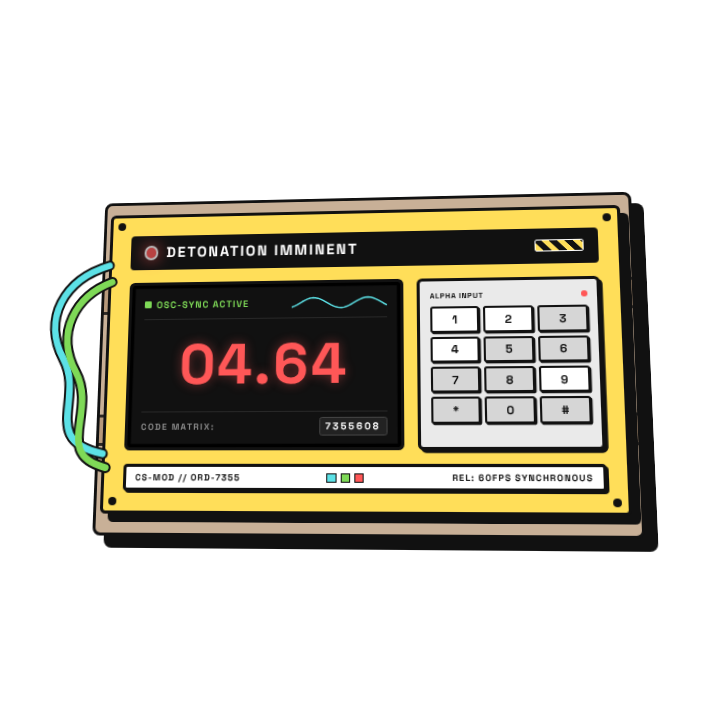
Retro Mechanical Split-Flap Countdown
Free countdowns asset, editable in your browser
- 1 free download/day · With a watermark
- Editable text, colors & timing
- WebM + ProRes 4444
- True alpha transparency
An aesthetic, high-fidelity mechanical split-flap clock that performs a smooth countdown animation with procedural dust particles and realistic 3D lighting effects.
Technical Details
Live Configuration Preview
Try customizing this asset. Changes will update the preview instantly.
Ready to use your customized asset?
Sign up to save this configured asset to your workspace and use your free daily download with a watermark.
How to use this asset and frequently asked questions
Free to customize and download
This countdowns asset is free to add to your workspace and free to edit — adjust its text, colors, timing and layout before you export. Free accounts include one free render per day with a watermark. Export ProRes 4444 for the widest professional editor compatibility, or WebM for OBS and web use. Transparent WebM can show glow or shadow artifacts in CapCut. No AI tokens are required for the daily Community render.
Use it as an editable DaVinci Resolve title
Export this asset as a .drfx template for DaVinci Resolve 21+ on macOS and Windows, instead of a rendered clip. These settings become controls in the Resolve Inspector, so you can change them for each video without rendering again:
- Flip Leaf Color
- Numeral Color
- Housing Color
- Hardware Accent Color
- Dust Illumination Color
- Clock Width
- Clock Height
- Numeral Font Size
- Housing Corner Radius
- Leaf Corner Radius
- Internal Housing Margin
- Horizontal Split Gap
- Show Depth Shadows
- Show Lateral Hinges
- Show Dust Particles
- Mechanical Shudder
- Idle Air Drift
Add the asset to your workspace and choose DaVinci on its card. The editable export is a one-time unlock of 15 tokens (5 for your own assets); downloading it again is free. If the asset can't be packaged as a Resolve title, the export stops before any tokens are charged.
How to use this asset+
This 1080x1080 transparent video asset is 10 seconds long and exports in WebM (with alpha channel) and ProRes 4444 formats.
Premiere Pro: Sync the countdown to your content by aligning the end frame of the animation with your zero moment using timecode in the Effect Controls panel.
DaVinci Resolve: Drop on a track above footage. Use the Inspector > Transform panel for positioning. To sync the endpoint, use the clip's end point in the timeline.
Final Cut Pro: Add above your primary storyline. Trim the clip's out-point so the countdown ends at your target timestamp. Use the Inspector for position adjustments.
CapCut: Add as an overlay and trim the end of the clip to align with your zero moment. Use the canvas handles to position.
OBS Studio: Add as a Media Source for stream starting-soon scenes. Uncheck Loop so the countdown runs once and stops automatically. OBS supports WebM with alpha natively, so use the WebM export here — it keeps the file size far smaller than ProRes 4444 while preserving full transparency.
Tips
- Use countdown animations at natural pause points — before a challenge, reveal, or transition — rather than forcing them into your content.
- Countdown overlays work well for YouTube Premiere screens. Add the countdown animation over your thumbnail for a pre-stream experience.
- Match countdown visual style to your channel brand — sci-fi, minimal, or retro — for a consistent identity.
Frequently asked questions+
Can I customize the countdown duration?
Yes — the workspace editor exposes duration as a configurable parameter from 1 to 10 seconds.
How do I use a countdown for a Twitch starting-soon screen?
Add the countdown as a Media Source in OBS on your Starting Soon scene. Uncheck Loop and set it to play once when you activate the scene.
How do I sync the countdown to my stream start time?
Activate the scene in OBS at a specific time before going live. The countdown runs and stops automatically. For precise sync, use a media source trigger or a scheduled scene switch.
Is this asset free to use?
Yes. You can add and customize community assets for free, then download one rendered WebM or ProRes 4444 clip per day with a watermark to use in your video projects. Exporting an asset as an editable DaVinci Resolve title is a separate paid unlock.
Can I customize this asset?
Use the live configuration above to preview changes, then sign up for a free account to add this asset to your workspace. From there you can edit colors, text, timing, and other properties before rendering.
What formats are available?
Rendered clips are available as WebM with alpha channel and ProRes 4444. Both include true transparency for clean compositing in your timeline. Assets with supported text, color, number and on/off settings can also be exported as editable DaVinci Resolve 21+ titles (.drfx).