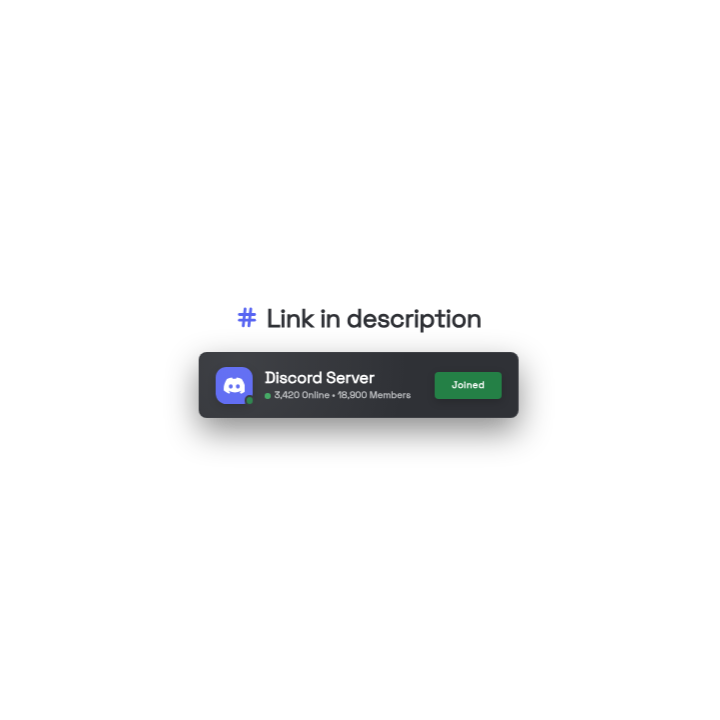
Neobrutalist Discord Invite Animation
Free social media asset, editable in your browser
- 1 free download/day · With a watermark
- Editable text, colors & timing
- WebM + ProRes 4444
- True alpha transparency
A stylized Discord invite card with a floating entrance, interactive cursor click, and celebratory particle sparks. Perfect for community building and gaming content.
Technical Details
Live Configuration Preview
Try customizing this asset. Changes will update the preview instantly.
Ready to use your customized asset?
Sign up to save this configured asset to your workspace and use your free daily download with a watermark.
How to use this asset and frequently asked questions
Free to customize and download
This social media asset is free to add to your workspace and free to edit — adjust its text, colors, timing and layout before you export. Free accounts include one free render per day with a watermark. Export ProRes 4444 for the widest professional editor compatibility, or WebM for OBS and web use. Transparent WebM can show glow or shadow artifacts in CapCut. No AI tokens are required for the daily Community render.
How to use this asset+
This 1080x1080 transparent video asset is 5 seconds long and exports in WebM (with alpha channel) and ProRes 4444 formats.
Premiere Pro: Use the Essential Graphics panel to swap out placeholder text with your actual handles. Place the clip on V2 and keyframe opacity for fade in/out.
DaVinci Resolve: Drop on a track above footage in the Edit page. Use the Fusion page to replace text nodes if needed, or Inspector > Text for simple replacements.
Final Cut Pro: Add above your primary storyline. Click the clip in the timeline to reveal text parameters in the Inspector and replace placeholder handles.
CapCut: Add as an overlay. Tap the text element in the overlay to edit handles directly on the canvas.
OBS Studio: Add as a Browser Source if you need dynamic handle updates, or use a Media Source for a pre-rendered static animation with your handles baked in. OBS supports WebM with alpha natively, so use the WebM export here — it keeps the file size far smaller than ProRes 4444 while preserving full transparency.
Tips
- Match your platform brand colors — use Instagram gradient for Instagram handles, Twitter/X blue for X, etc.
- Keep handles readable at mobile viewing size (at least 18px equivalent). Test on your phone before publishing.
- Include icons alongside the handle text for faster platform recognition, especially when viewers are watching on mobile.
Frequently asked questions+
Can I show handles for multiple platforms in one animation?
Yes — many templates cycle through platforms. Use the workspace editor to set each handle before rendering.
What size should social media overlays be for Stories?
Use a 1080x1920 canvas and keep overlays within the safe zone (center 75% of frame width) to avoid being cropped by the platform UI.
Is this asset free to use?
Yes. You can add and customize community assets for free, then download one rendered WebM or ProRes 4444 clip per day with a watermark to use in your video projects. Exporting an asset as an editable DaVinci Resolve title is a separate paid unlock.
Can I customize this asset?
Use the live configuration above to preview changes, then sign up for a free account to add this asset to your workspace. From there you can edit colors, text, timing, and other properties before rendering.
What formats are available?
Rendered clips are available as WebM with alpha channel and ProRes 4444. Both include true transparency for clean compositing in your timeline. Assets with supported text, color, number and on/off settings can also be exported as editable DaVinci Resolve 21+ titles (.drfx).