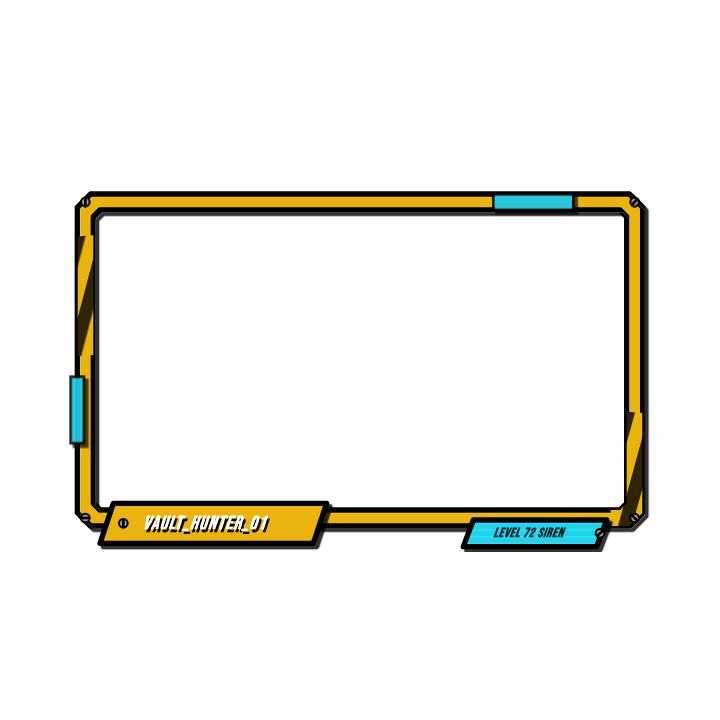
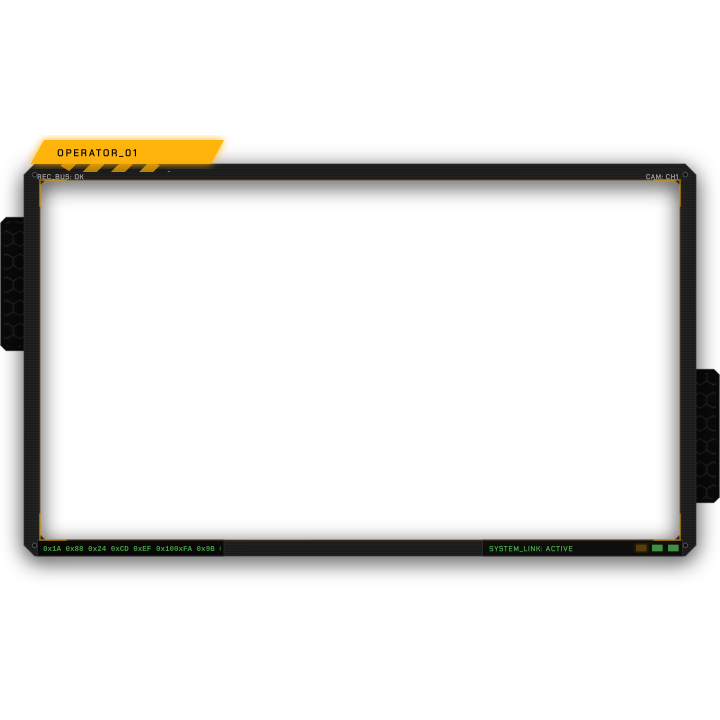
Cyberpunk Tactical Gaming Stream Overlay
Free overlays asset, editable in your browser
- 1 free download/day · With a watermark
- Editable text, colors & timing
- WebM + ProRes 4444
- True alpha transparency
A high-tech, tactical HUD for streamers featuring animated panels for chat, subscribers, donations, and a webcam frame with a rhythmic glow effect.
Technical Details
Live Configuration Preview
Try customizing this asset. Changes will update the preview instantly.
Ready to use your customized asset?
Sign up to save this configured asset to your workspace and use your free daily download with a watermark.
How to use this asset and frequently asked questions
Free to customize and download
This overlays asset is free to add to your workspace and free to edit — adjust its text, colors, timing and layout before you export. Free accounts include one free render per day with a watermark. Export ProRes 4444 for the widest professional editor compatibility, or WebM for OBS and web use. Transparent WebM can show glow or shadow artifacts in CapCut. No AI tokens are required for the daily Community render.
Use it as an editable DaVinci Resolve title
Export this asset as a .drfx template for DaVinci Resolve 21+ on macOS and Windows, instead of a rendered clip. These settings become controls in the Resolve Inspector, so you can change them for each video without rendering again:
- Chat Header
- Subscriber Label
- Donator Label
- Social Handle
- Accent Color
- Panel Color
- Text Color
- Label Font Size
- Webcam Width
- Chat Width
- Panel Padding
- Stroke Width
- Carbon Fiber Texture
- Hex Vents
- Hardware Screws
- Emissive Glow
- Metallic Sheen
- Breathing Animation
- Motion Intensity
- Edge Sweep
Add the asset to your workspace and choose DaVinci on its card. The editable export is a one-time unlock of 15 tokens (5 for your own assets); downloading it again is free. If the asset can't be packaged as a Resolve title, the export stops before any tokens are charged.
How to use this asset+
This 1920x1080 transparent video asset is 6 seconds long and exports in WebM (with alpha channel) and ProRes 4444 formats.
Premiere Pro: Place on a track above your footage. For luminous or light-leak effects, set the Blend Mode to Screen or Add in Effect Controls. For opaque decorative overlays, keep it at Normal.
DaVinci Resolve: Drop on a track above footage in the Edit page. Set Composite Mode in the Inspector to Screen for glowing overlays or Normal for opaque frames.
Final Cut Pro: Add above your primary storyline. Use the Inspector > Compositing section to set the blend mode. Adjust Opacity to taste.
CapCut: Add as an overlay layer. Use the blend mode picker in the overlay toolbar — try Screen for light effects, Normal for decorative overlays.
OBS Studio: Add as a Media Source and layer above your scene sources. WebM alpha transparency means no chroma key needed — the overlay sits cleanly above your content. OBS supports WebM with alpha natively, so use the WebM export here — it keeps the file size far smaller than ProRes 4444 while preserving full transparency.
Tips
- Use 50–80% opacity for decorative overlays to add texture without overpowering your subject.
- Match the overlay color temperature to your footage — warm overlays work better with warm footage, cool with cool.
- Screen blend mode is ideal for fire, light leaks, and energy effects. Normal blend mode works best for opaque frames and borders.
Frequently asked questions+
How do I get transparency to work in OBS?
WebM with alpha channel works natively in OBS as a Media Source. No chroma key or plugin required — just add the file and the transparency is automatic.
Can I use these overlays for Twitch streaming?
Yes. Add the WebM as a Media Source in OBS or Streamlabs and layer it above your game capture or webcam source.
Can I combine overlays with color grading?
Yes — place the overlay above your color-graded footage layer. The blend mode and opacity stack on top of your grade.
Is this asset free to use?
Yes. You can add and customize community assets for free, then download one rendered WebM or ProRes 4444 clip per day with a watermark to use in your video projects. Exporting an asset as an editable DaVinci Resolve title is a separate paid unlock.
Can I customize this asset?
Use the live configuration above to preview changes, then sign up for a free account to add this asset to your workspace. From there you can edit colors, text, timing, and other properties before rendering.
What formats are available?
Rendered clips are available as WebM with alpha channel and ProRes 4444. Both include true transparency for clean compositing in your timeline. Assets with supported text, color, number and on/off settings can also be exported as editable DaVinci Resolve 21+ titles (.drfx).